

A graphical user interface client for operators to interact with the RF Phaser server at JLab.
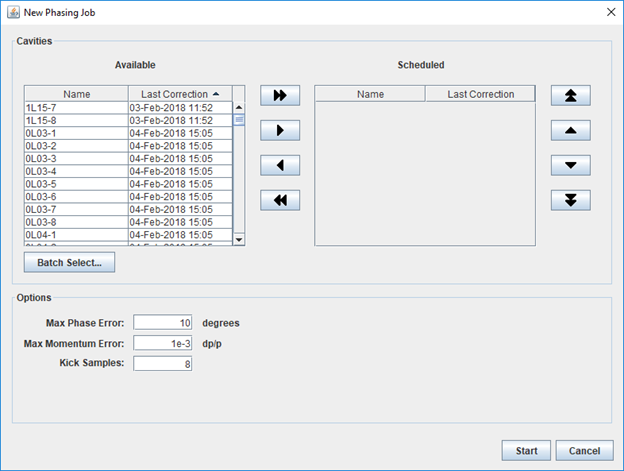
This application provides an interface for operators to control the RF Phaser server. The server provides a means to optimize RF cavity phase angle in order to maximize the amount of energy to the accelerator beam, while minimizing energy spread. See docs.
This application requires a Java 11+ JVM and standard library to run. The app requires an Oracle database (schema setup) and an RF Phaser server. Docker is used to provide a local Oracle database during development and testing. A simple RF Phaser test server is provided in this project as well.
Download from Releases or build the distribution yourself.
Launch with:
UNIX:
bin/phaser-client
Windows:
bin/phaser-client.bat
The app expects two configuration files:
| NAME | DESCRIPTION | EXAMPLE |
|---|---|---|
| client.properties | client configuration | client.properties |
| logging.properties | logging configuration | logging.properties |
The client.properties must be in the classpath and the logging.properties must be referenced via Java System Property java.util.logging.config.file. The scripts generated in the install step handle both the classpath and system property and assume the config files are in a directory named config at the root of the project.
This project is built with Java 21 (compiled to Java 11 bytecode), and uses the Gradle 9 build tool to automatically download dependencies and build the project from source:
git clone https://github.com/JeffersonLab/phaser-client.git
cd phaser-client
gradlew build
Note: If you do not already have Gradle installed, it will be installed automatically by the wrapper script included in the source
Note for JLab On-Site Users: Jefferson Lab has an intercepting proxy
In order to iterate rapidly when making changes it's often useful to run the app directly on the local workstation, perhaps leveraging an IDE. In this scenario run the Oracle service dependency with:
docker compose -f deps.yaml up
Then run the test server with:
gradlew runServer
And run the client with:
gradlew runClient
Note: The default configuration assumes a connection to the test server and Oracle DB on localhost and therefore client.properties contain:
server.host=localhost
server.port=2048
db.url=jdbc:oracle:thin:@//localhost:1521/xepdb1
db.user=phaser_reader
db.password=password
Note: Javadocs can be generated with the command:
gradlew javadoc
Note: The graphical Java Swing forms were built using the Apache Netbeans Matisse builder tool. It's recommended that graphical component modifications be made using this tool, which modifies the XML *.form files. The XML is used to dyanamically generate Java Swing code.
- Bump the version number in the VERSION file and commit and push to GitHub (using Semantic Versioning).
- The CD GitHub Action should run automatically invoking:
- The Create release GitHub Action to tag the source and create release notes summarizing any pull requests. Edit the release notes to add any missing details. A distribution zip file artifact is attached to the release.
- The Publish docs GitHub Action to create and publish javadocs.
- The Deploy to JLab GitHub Action to deploy to the JLab dev environment (PRO link is untouched).
At Jefferson Lab this application is deployed to the certified apps area and launched via JMenu using search keyword phaser. Deploying a new version is partially automated on release with the code being staged via deploy.sh.
After testing to ensure the new app version launches and works as expected (and to verify the Help dialog indicates the new version), you can make the new version the live version by updating the symbolic link:
ssh sqam@devl00
cd /cs/certified/apps/phaser
unlink PRO
ln -s ${VERSION} PRO
Generally the configure step must be done as the default configs assume localhost. The deploy script just copies the config from the previous version.
The steps above will only update the dev filesystem. To update others such as ops generally the SQAM runs a sync with:
/cs/certified/admin/rsync_certified
Note: The JLab certified app linking system may attempt to use nested relative linking, which doesn't work with our start script. Be sure absolute paths are set. Generally certified apps are available in a fiefdom user's path by default via this linking. Currently the app is available on the path as phaser-client.